How to register your website and upgrade the Pro version plugin
This tutorial will guide you on how to register your website and upgrade the plugin in your WordPress backend.
To follow this tutorial, the plugin you are using must be the Pro version, and the license must be valid. If you have recently purchased the Pro version but are still running the free version on your website, please refer to this tutorial to learn how to install the Pro version: How to install and upgrade to the Pro version without losing existing work.
There are 3 steps to upgrade a Pro version plugin to its latest version:
Step 1 - Get your license key
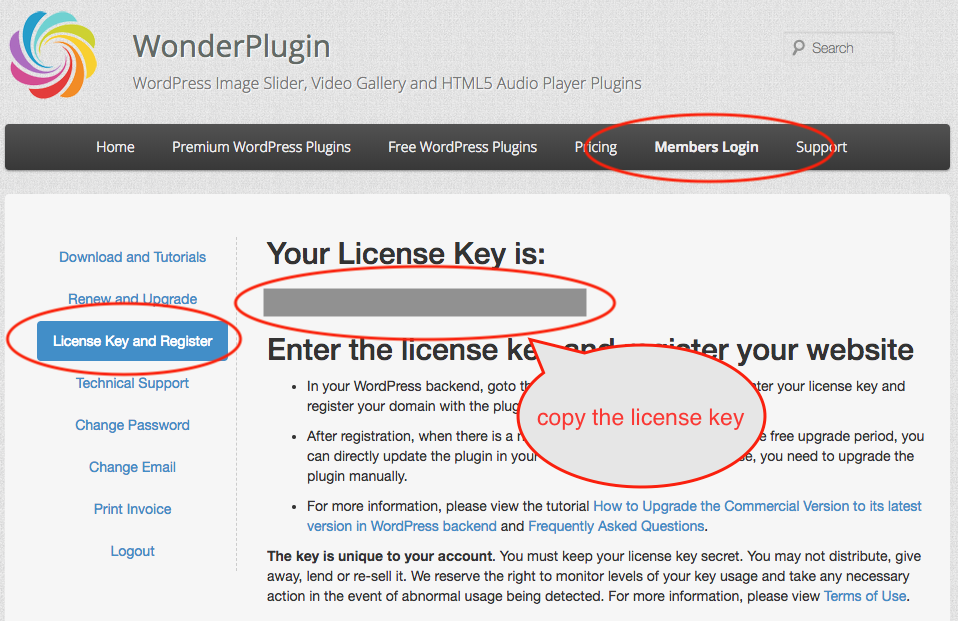
First, log into the Membership Area on our website, click License Key and Register in the left menu, and copy your license key.
Step 2 - Enter license key to the plugin
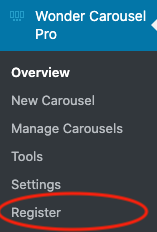
In your WordPress backend, navigate to the left menu and go to the plugin's menu item (e.g., Wonder Carousel Pro, Wonder Slider Pro, etc.) -> Register.
If your plugin does not have the Register menu, it means either you are still running the free version or the Pro version installed on your WordPress is outdated. In this case, please download the Pro version from the Membership Area and follow the tutorial to upgrade to the latest Pro version: How to install and upgrade to the Pro version without losing existing work.
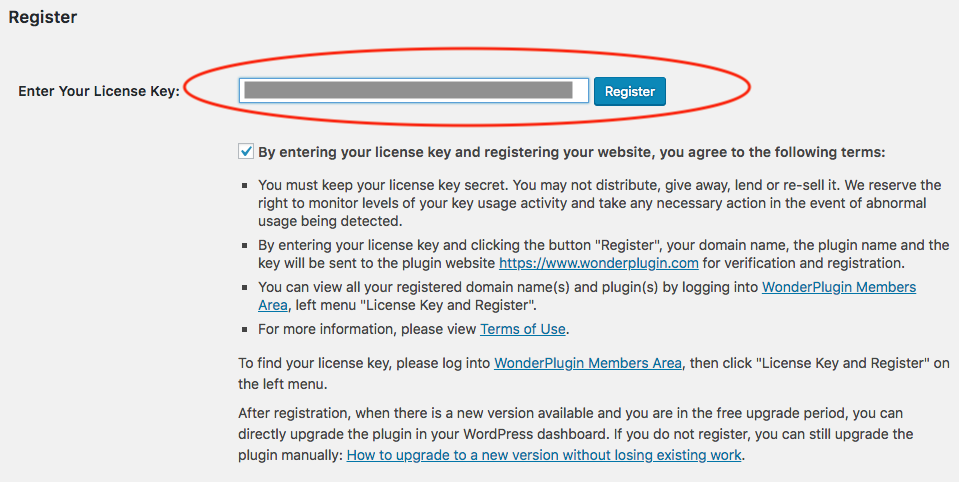
On the Register page, enter your license key.
Step 3 - Check for a New Version in WordPress
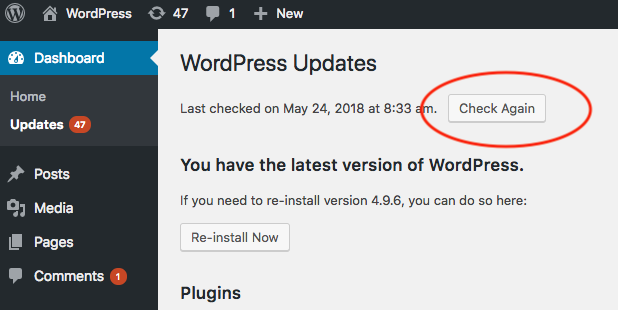
After successfully registering your website, go to the WordPress left menu Dashboard -> Updates, and click the Check Again button. WordPress caches plugin information, so if a new version was recently released, you may need to click the button multiple times or wait several hours before checking again.
If a new version is available, the upgrade information will appear on the page. You can then select the plugin and update it.
Upgrade Plugin Manually
If your website is not connected to the Internet, or if you prefer not to register your website, you can upgrade the plugin manually. For detailed instructions on how to manually upgrade the plugin without losing existing work, please refer to the tutorial: How to upgrade to a new version without losing existing work.