Product:
This tutorial will show you how to load image and video list from a json service in the plugin Wonder Portfolio Grid Gallery.
Recently Asked Questions and WordPress Tutorials
Product:
This tutorial will show you how to load image and video list from a json service in the plugin Wonder Portfolio Grid Gallery.
This tutorial will show you how to add a recent post carousel or a category post carousel to your WordPress. The carousel will automatically update itself when you add new posts to your WordPress.
Product
Question
Some of our pages function better with different skins depending on whether we are using desktop or mobile.
Is there a way to use different skins for desktop and mobile?
Answer
You can create two WordPress sliders, one for mobile, one for desktop.
After you have created two sliders, you can add the following code to your post or page. Please be sure to change the ID value in the code to that of your own sliders.
<div id="largescreen">
[[wonderplugin_slider id="1"]]
</div>

<div id="smallscreen">
[[wonderplugin_slider id="2"]]
</div>
Then you can add the following CSS code to your WordPress theme style.css file to show the small slider when the screen width is less than 640px:
#largescreen {
  display: block;
}

#smallscreen {
  display: none;
}

@media (max-width: 640px) {
  #largescreen {
    display: none;
  }

  #smallscreen {
    display: block;
  }
}
Product:
Question:
I wonder how can I add a poster image for HTML5 video lightbox?
Answer:
The HTML5 poster image feature is available in WonderPlugin Lightbox version 4.0 and above. If you are using an old version, please upgrade your plugin first.
In the plugin, Lightbox Options menu, there is an option "Video poster image (absolute URL)", you can use the option to specify a poster image for all HTML5 videos.
Or you can use a data tag data-html5videoposter to specify a poster image for the lightbox link, for example:
The HTML code is as following:
<a href="https://www.wonderplugin.com/wp-content/plugins/wonderplugin-lightbox/images/demo-video0.mp4" class="wplightbox" data-webm="https://www.wonderplugin.com/wp-content/plugins/wonderplugin-lightbox/images/demo-video0.webm" data-html5videoposter="https://www.wonderplugin.com/wp-content/uploads/2014/03/gallery.jpg">Video Lightbox</a>
Product:
Question:
I came across your site because it says you have a WordPress Live Streaming Audio Player, but when I click on it, it takes me to just your Wonderplugin Audio Player. Are they the same thing? How would I set up the live feed? The video tutorial didn't show it.
Answer:
The plugin Wonder Audio Player is capable of playing live mp3 streaming URL.
You can view the tutorials on the page: WordPress Live Streaming Player
Product:
Question:
I want to know how to write javascript to catch the event play and stop.
Answer:
You could use the following JavaScript code:
jQuery("#wonderpluginaudio-1").on("amazingaudioplayer.played", function(event, data) {
  console.log(event);
  console.log(data);
});

jQuery("#wonderpluginaudio-1").on("amazingaudioplayer.ended", function(event, data) {
  console.log(event);
  console.log(data);
});

jQuery("#wonderpluginaudio-1").on("amazingaudioplayer.paused", function(event, data) {
  console.log(event);
  console.log(data);
});

jQuery("#wonderpluginaudio-1").on("amazingaudioplayer.switched", function(event, data) {
  console.log(event);
  console.log(data);
});
Please change the number 1 in the above code to the ID of your player.
Product
Question
When searching for a WordPress plugin Embedded Video player that supports Dailymotion, your site always comes up as being DailyMotion compatible. How do I display videos which I have on my DailyMotion profile?
Answer
Our plugin WordPress Gallery supports DailyMotion.
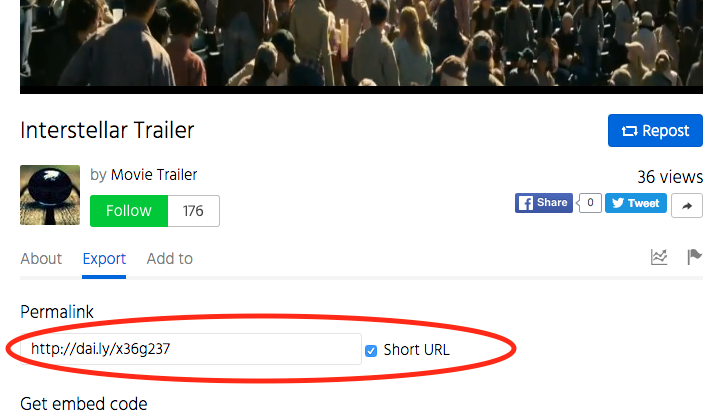
1. In your DailyMotion video page, click the link Export, then copy the Permalink.
2. In WonderPlugin Gallery, step 1, click the button Add DailyMotion, enter the link and add the DailyMotion to the video gallery.
Product:
Question:
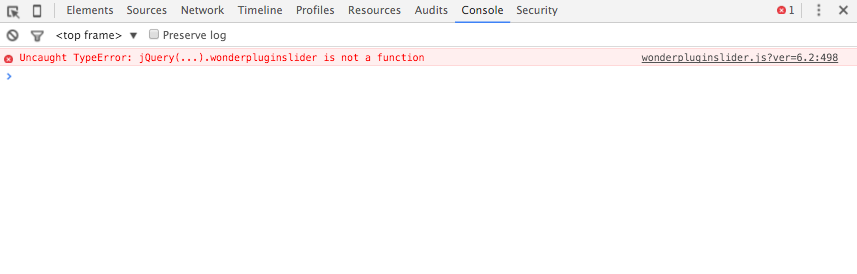
I added the slider shortcode to a WordPress page, but the slider is not showing up, and I found the following error in the Chrome JavaScript console: Uncaught TypeError: jQuery(...).wonderpluginslider is not a function
Answer:
This problem is normally because there are multiple jQuery loaded in your WordPress.
Please view the following tutorial for how to fix the problem: https://www.wonderplugin.com/wordpress-carousel-plugin/multiple-jquery-loaded-in-wordpress/
Product:
Question:
Can you put a "buy now" button on each song that we can set a URL where people can purchase that song or playlist?
Answer:
Please note, this answer only adds required buy now links to the audio player. The plugin does not include a shopping cart function and it's your own responsibility to integrate the buy now links to your shopping cart.
In the plugin, step 3, Options tab, Advanced Options, add the following text to the Advanced Options box:
data-tracklistitemformat="%ID%. %TITLE% <span style='float:right;'><a href='https://www.wonderplugin.com/demo-checkout/?id=%ID%'>Buy Now</a></span>"
In the above text, the %ID%, %TITLE% are pre-defined macro variables supported by the plugin. They will be dynamically replaced when the player is rendered.
The text <a href='https://www.wonderplugin.com/demo-checkout/?id=%ID%'>Buy Now</a> defines the Buy Now link. The %ID% in the href value will be dynamically replaced by the current audio id. When the player is rendered, the Buy Now link for each audio will be:
https://www.wonderplugin.com/demo-checkout/?id=1
https://www.wonderplugin.com/demo-checkout/?id=2
https://www.wonderplugin.com/demo-checkout/?id=3
In your checkout page (in this tutorial, it's https://www.wonderplugin.com/demo-checkout/), you need to check the value of parameter id, and add the corresponding audio to your shopping cart. Please make sure to change the URL to your own checkout page.
The CSS span style will move the Buy Now link to the right of the play list.
Product:
WonderPlugin Audio Player Plugin
Question:
Is there any way to use the WordPress Audio Player plugin on a widget?
Answer:
You can add a Text Widget, then paste the player shortcode to the text widget content.